
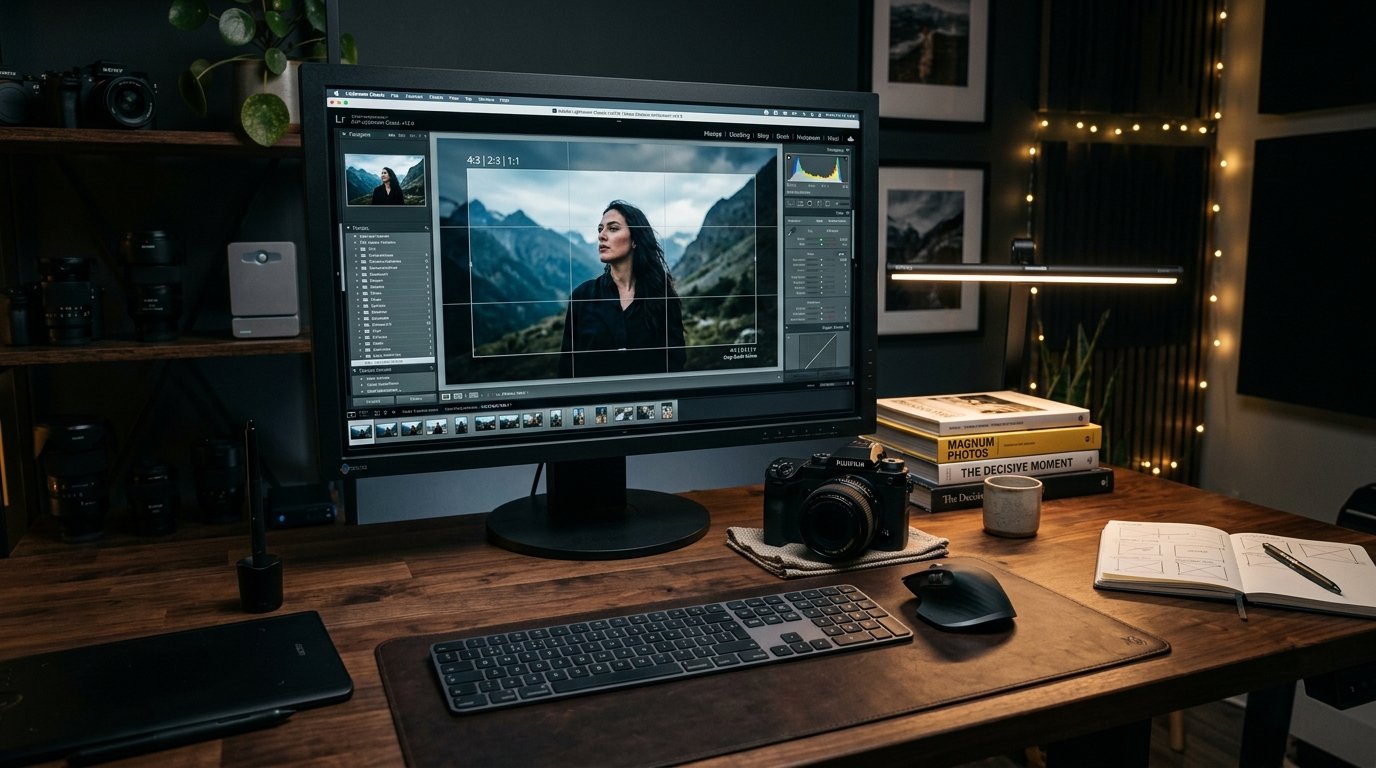
1. What is an Image Resizer and Why is Bitmap Scaling Computationally Complex?
A precision Image Resizer is one of the most critical digital optimization instruments in modern web development, e-commerce operations, digital publishing, graphic arts, and mobile application engineering. Every single day, billions of digital images are transmitted across the global internet, accounting for over 65% of total webpage data payloads. While modern digital cameras and flagship smartphones capture ultra-high-resolution photographs exceeding 48 megapixels (8000 × 6000 pixels) with raw file sizes between 15MB and 30MB, loading such colossal files on mobile websites severely destroys page load speeds. To transform heavy raw camera captures into lightweight, responsive digital assets, an advanced Image Resizer is indispensable.
In digital image processing, an Image Resizer alters the total pixel dimensions (width and height) of a discrete two-dimensional raster bitmap. Unlike image cropping (which cuts away outer edges while leaving existing pixels untouched), an Image Resizer resamples the entire visual continuum, mathematically mapping color and alpha intensities from the original pixel grid onto an entirely new spatial coordinate matrix. As documented by web standards established by the W3C HTML Canvas 2D Context Specification, achieving clean spatial transformations without introducing jagged pixel edges or fuzzy blurring requires sophisticated mathematical interpolation.
In 2026, web performance is a paramount ranking factor in search engine algorithms. Websites that force mobile visitors to download unscaled 20MB hero graphics suffer from severe Largest Contentful Paint (LCP) delays, surging bounce rates, and plummeting conversion numbers. Deploying an automated in-browser Image Resizer empowers content creators, photographers, and developers to downscale large visual assets to exact viewport dimensions in microseconds without sacrificing perceived photographic sharpness.
Through our dedicated in-browser Image Resizer Tool, users can resize JPEG, PNG, and WEBP graphics by exact pixel dimensions or percentages with locked aspect ratios. Complementing our visual utility suite, including the Client-Side Image Cropper, the Circular Profile Picture Maker, and the Image Eyedropper & Color Picker, our resizing engine processes graphics 100% locally within your client browser memory sandbox with zero server latency and total data privacy.
2. The Mathematics of Pixel Scaling and Discrete 2D Spatial Transformations
To master the output of a professional Image Resizer, one must understand the underlying mathematical representation of digital raster bitmaps. A digital bitmap is not a continuous painting; it is a discrete two-dimensional mathematical array of sampled color values.
Discrete Coordinate Mapping
Let an input image be represented as a discrete function $I_{in}(x, y)$ of dimensions $W_{in} imes H_{in}$, where $x in [0, W_{in}-1]$ and $y in [0, H_{in}-1]$. When an Image Resizer generates an output image $I_{out}(u, v)$ of target dimensions $W_{out} imes H_{out}$, each destination pixel coordinate $(u, v)$ must be mapped back to a continuous source coordinate $(x_s, y_s)$ in the original coordinate space:
x_s = (u + 0.5) * (W_in / W_out) - 0.5
y_s = (v + 0.5) * (H_in / H_out) - 0.5
The $+0.5$ and $-0.5$ offsets represent half-pixel centering, which guarantees that the physical center of the resized image aligns symmetrically with the center of the original image, preventing subtle border drift artifacts. Because $x_s$ and $y_s$ are continuous real floating-point numbers rather than integers, an Image Resizer must calculate what color value should occupy that fractional sub-pixel location through spatial interpolation.
3. Resampling Algorithms: Nearest Neighbor vs. Bilinear vs. Bicubic vs. Lanczos-3
The visual quality and sharpness of an asset produced by an Image Resizer depend directly upon the spatial interpolation kernel deployed during the resampling calculation.
1. Nearest Neighbor Resampling
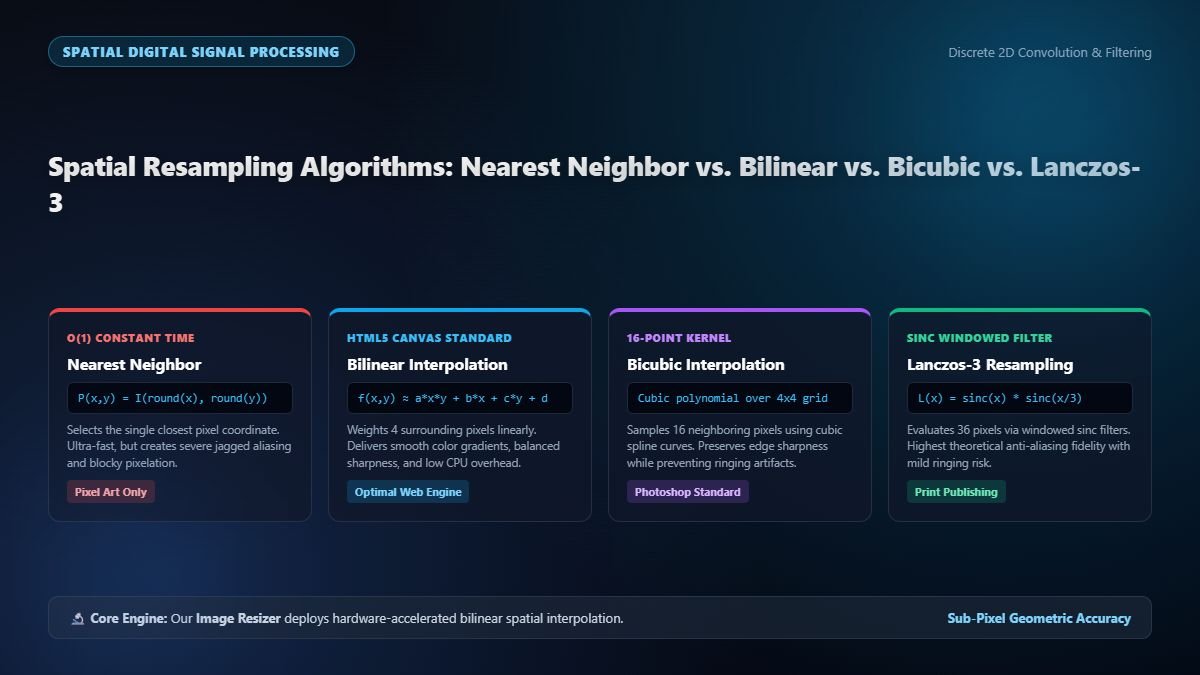
Nearest Neighbor interpolation is the simplest resampling technique: it rounds the continuous coordinate $(x_s, y_s)$ to the nearest discrete integer pixel coordinate and copies its color value directly without blending. While computationally instantaneous ($mathcal{O}(1)$ complexity), it produces severe visual degradation when scaling photographs: diagonal lines break into jagged stair-stepped blocks and fine text becomes unreadable. Nearest neighbor is preserved exclusively for retro 8-bit pixel art where preserving raw square pixels is aesthetically intended.
2. Bilinear Interpolation (The ulovepdfs Engine Standard)
Bilinear resampling evaluates the four discrete pixels surrounding the continuous source coordinate $(x_s, y_s)$. It executes a linear interpolation first along the horizontal X-axis between top and bottom pixel pairs, followed by a second interpolation along the vertical Y-axis. The resulting color value represents a weighted average proportional to distance:
f(x, y) = (1 - dx) * (1 - dy) * P(0,0) + dx * (1 - dy) * P(1,0) + (1 - dx) * dy * P(0,1) + dx * dy * P(1,1)In our online Image Resizer, bilinear filtering is hardware-accelerated directly by your device GPU via HTML5 Canvas 2D pipelines, delivering pristine gradient smoothing, sharp text boundaries, and microsecond rendering speed.
3. Bicubic Interpolation & Lanczos-3 Resampling
For high-end desktop publishing, bicubic interpolation expands the sampling grid to 16 neighboring pixels ($4 imes 4$ kernel) using cubic spline polynomials, producing smoother curvature transitions. Lanczos-3 resampling further expands the filter to a 36-pixel window ($6 imes 6$ grid) using windowed sinc functions ($L(x) = ext{sinc}(x) cdot ext{sinc}(x/3)$). While Lanczos delivers superior high-frequency anti-aliasing in print proofing, its computational intensity and tendency to produce subtle “ringing” halos make hardware-accelerated bilinear resampling the preferred standard for responsive web engineering.
4. The Nyquist-Shannon Sampling Theorem: Preventing Aliasing and Moiré Artifacts
When an operator uses an Image Resizer to downscale a large image (for example, shrinking an 8000-pixel photo down to an 800-pixel blog thumbnail), a critical physical constraint governs the process: the Nyquist-Shannon Sampling Theorem.
Formulated by Claude Shannon and Harry Nyquist in telecommunications and signal theory, the theorem dictates that to accurately reconstruct a signal without aliasing distortion, the spatial sampling frequency must be at least twice the highest spatial frequency contained in the image ($f_s ge 2 f_{max}$). When you downscale an image by a factor of 10, the new pixel grid can only represent frequencies that are 10 times lower. If high-frequency repeating details (such as fabric weaves, window blinds, or brick textures) are sampled without proper anti-aliasing filters, they fold back into low-frequency ghost patterns called moiré fringes.
A professional Image Resizer prevents moiré by applying a low-pass Gaussian pre-filter or utilizing multi-step mipmapping downsampling, ensuring that fine textures compress into smooth, natural photographic tones rather than jarring optical interference waves.
5. Aspect Ratio Preservation: Mathematical Invariance and Distortion Prevention
One of the most frequent visual blunders on the web is distorted image scaling caused by unlocking the aspect ratio. Understanding geometric proportionality demonstrates why an engineered Image Resizer enforces aspect ratio locking by default.
The Proportional Invariance Theorem
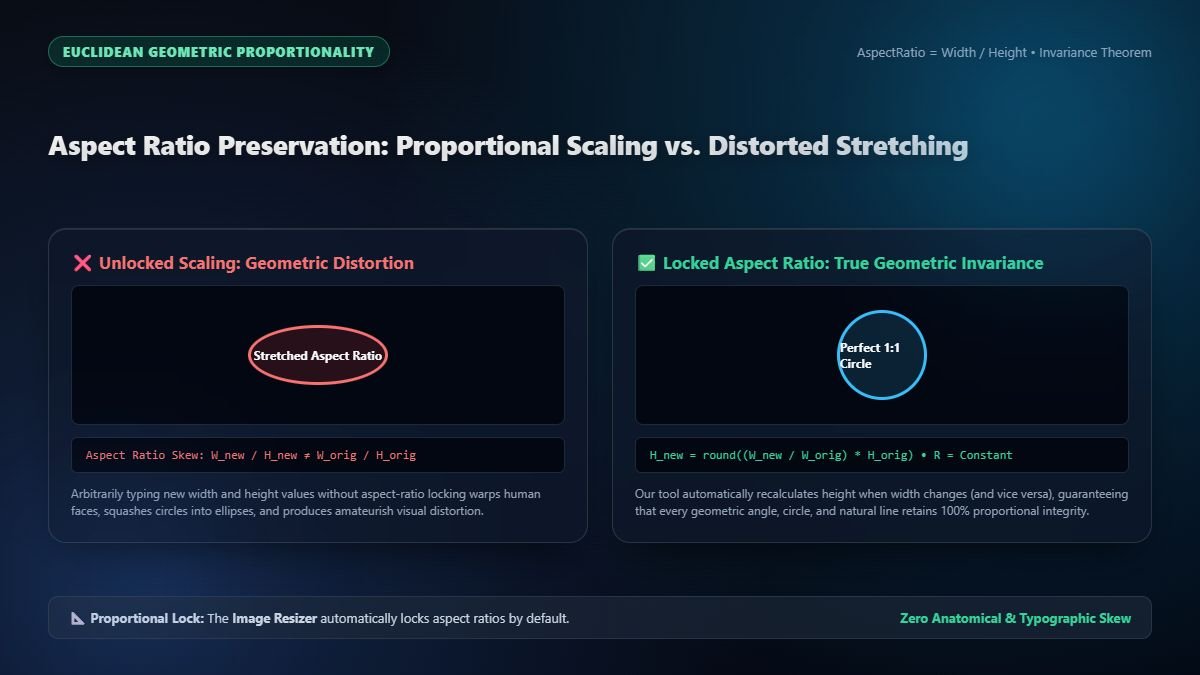
The aspect ratio $R$ of an image is the mathematical quotient of its width divided by its height: $R = W / H$. Common standard aspect ratios include 16:9 ($R approx 1.778$) for widescreen banners, 4:3 ($R approx 1.333$) for tablet displays, and 1:1 ($R = 1.000$) for profile avatars. When an operator resizes an asset, maintaining geometric similarity requires preserving this ratio constant:
W_new / H_new = W_orig / H_orig = R
H_new = round(W_new / R) = round(W_new * (H_orig / W_orig))
If an uncalibrated user manually types 1200px width and 400px height into an unlinked tool, circles squash into flat ellipses, human faces stretch horizontally, and architectural structures distort. Our online Image Resizer automatically locks aspect ratios in real time: as soon as you enter a new width, the corresponding height updates dynamically with integer precision.
6. Core Web Vitals Optimization: How Resized Assets Accelerate Largest Contentful Paint (LCP)
In modern SEO and web engineering, page load speed directly dictates commercial revenue. According to documentation published under Google Web.dev Core Web Vitals, Largest Contentful Paint (LCP) measures how long it takes for the largest visual element on the screen (almost always the hero image or product banner) to render fully.
The Hidden Penalty of CSS Scaling
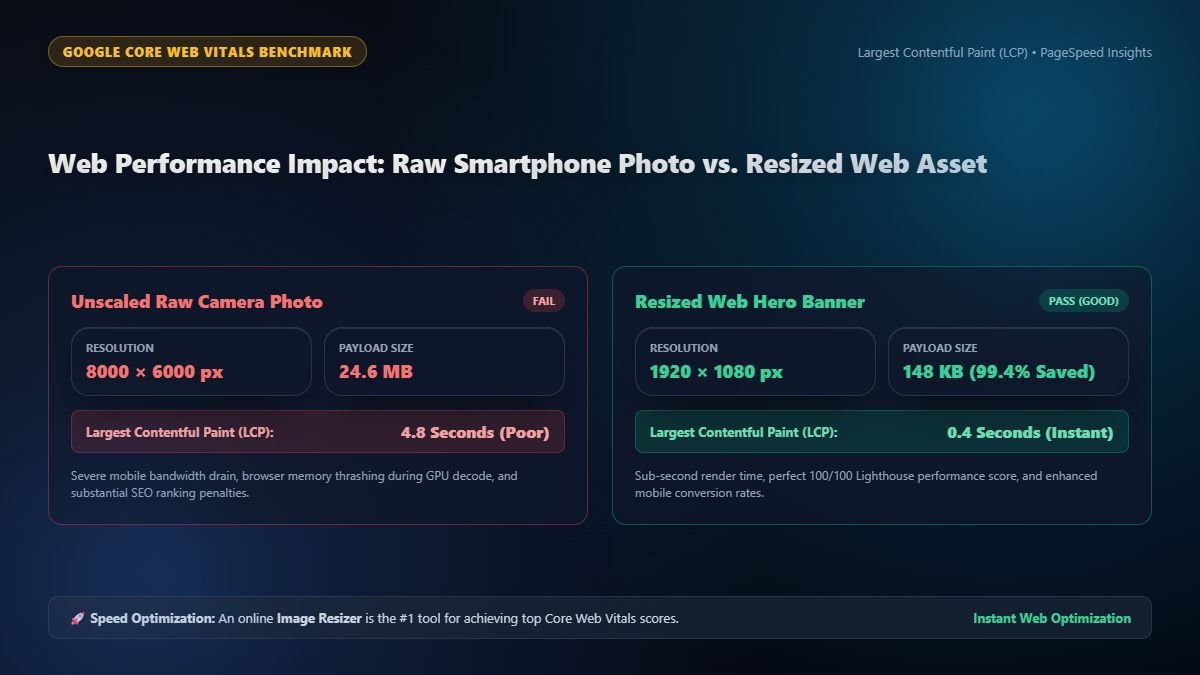
A widespread mistake made by novice webmasters is uploading a 24MB raw smartphone photo and attempting to “resize” it simply by adding a CSS attribute like width: 100%; max-width: 1200px;. While the image appears smaller visually on screen, the client browser must still download the full 24 megabytes over cellular data networks. Furthermore, the mobile device CPU and GPU must decode 48 million pixels into memory, causing frame drops and battery drain.
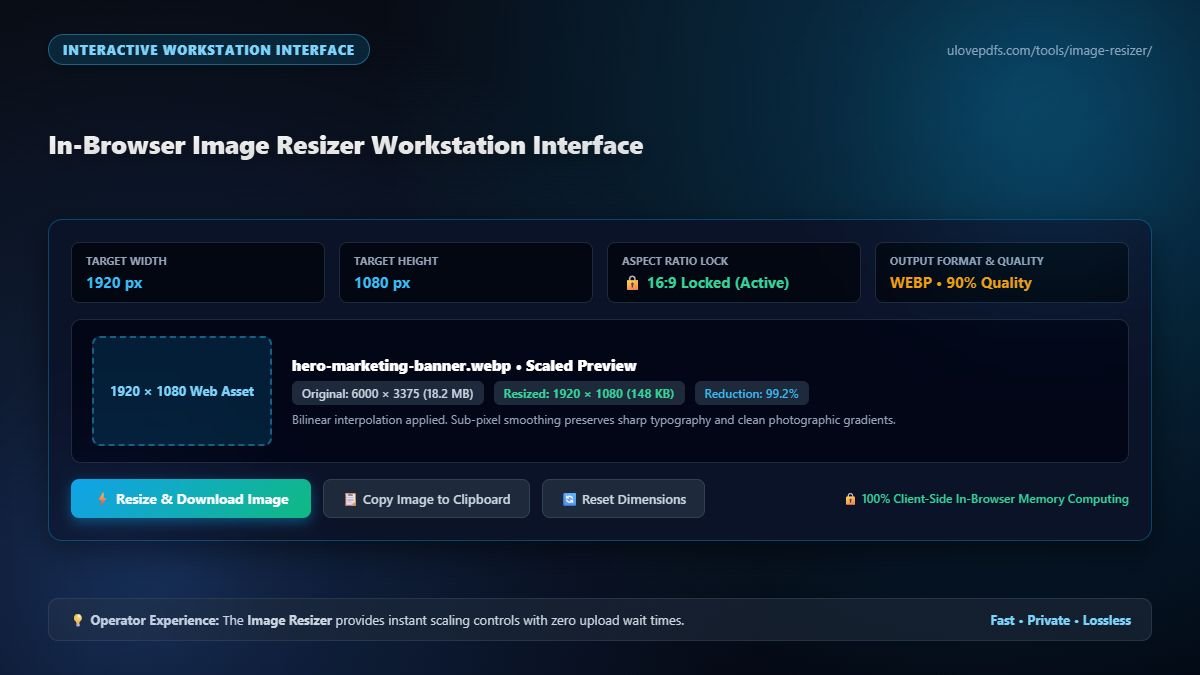
By passing the file through our in-browser Image Resizer before uploading, you physically downscale the underlying bitmap matrix to 1920 × 1080. The payload shrinks from 24.6MB down to a razor-thin 148KB—a massive 99.4% bandwidth reduction. On a 4G mobile connection, this optimization slashes LCP load times from 4.8 seconds down to an instantaneous 0.4 seconds, guaranteeing a green 100/100 score on Google PageSpeed Insights.
7. Upscaling vs. Downscaling: Information Entropy and Interpolation Limits
When operating an Image Resizer, one must recognize the thermodynamic boundary of digital information: downscaling discards redundant data, whereas upscaling cannot fabricate nonexistent physical details from thin air.
- Downscaling (Decimation): When reducing dimensions, the algorithm collapses multiple source pixels into single destination pixels. By applying weighted averaging, image noise is naturally suppressed, often making downscaled assets appear crisper and sharper than the original.
- Upscaling (Magnification): When enlarging a 300-pixel icon to 1200 pixels, the algorithm must invent 15 additional pixels for every single original pixel. Standard mathematical interpolation blends neighboring colors, producing a soft, blurry image. While modern neural super-resolution models attempt to hallucinate realistic textures, classical digital signal processing cannot restore optical focus lost at capture.
For optimal results with our Image Resizer, always begin with high-resolution source masters and downscale toward your desired publishing dimensions.
8. Zero-Trust Architecture: Why In-Browser Image Resizing Protects Confidential Assets
When working with confidential product prototypes, corporate identity assets, personal family photos, or medical documentation, uploading files to third-party web servers presents severe intellectual property risks. Many commercial online utilities upload your photos to cloud servers, where they may be stored, indexed, or analyzed by third-party AI models. Our Image Resizer is built on a Zero-Trust Client-Side Architecture.
Hardware-Accelerated Client-Side Execution
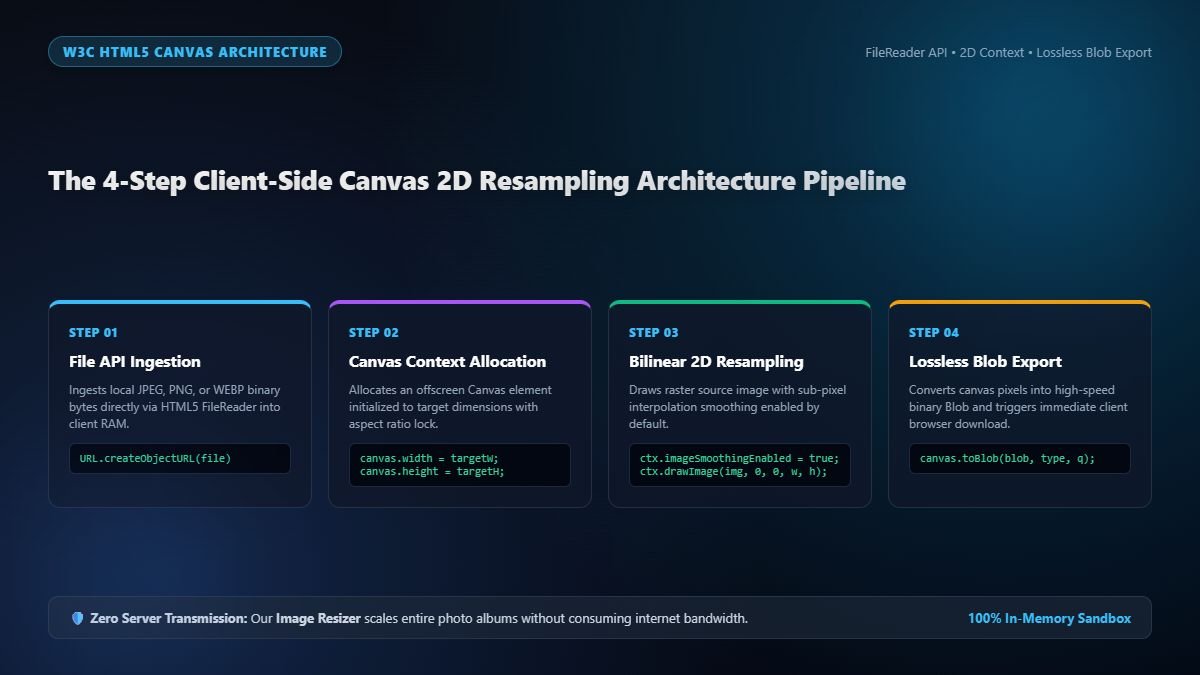
Our online Image Resizer utilizes the browser native HTML5 FileReader API and an offscreen Canvas 2D rendering context. Your photo is ingested directly from your local storage into volatile system RAM. Resampling calculations run on your local device graphics card. Once rendered, the canvas exports a binary Blob directly to your local download folder. Zero bytes of image data ever leave your computer, guaranteeing complete privacy, zero upload lag, and compliance with strict enterprise confidentiality policies.
9. 9 Best Ways to Resize Images Without Losing Quality in 2026
Whether you are designing e-commerce product catalogs, configuring WordPress blog headers, or preparing email newsletter attachments, adhering to proven engineering practices ensures optimal image fidelity. Here are the 9 best ways to utilize an Image Resizer in 2026:
1. Always Lock Aspect Ratios to Prevent Geometric Distortion
When adjusting dimensions in our Image Resizer, always ensure the “Lock Aspect Ratio” toggle is active. This guarantees that your image scales proportionally without squashing circles, stretching faces, or warping typography.
2. Target Exact Display Dimensions to Boost Core Web Vitals
Inspect your website CSS container widths before resizing. If your blog content column maxes out at 800px width, resize your graphic to exactly 800px (or 1600px for 2x Retina screens). Serving oversized assets wastes user bandwidth and harms your Google LCP performance score.
3. Crop Unwanted Edges Before Scaling Dimensions
If your subject is surrounded by excessive background clutter, do not resize the entire frame. Use our companion Client-Side Image Cropper to isolate your subject first, then scale the cropped asset to target dimensions.
4. Export to Next-Generation WEBP Format for Maximum Compression
When downloading from our Image Resizer, select WEBP format whenever possible. WEBP delivers 25% to 35% higher compression efficiency than legacy JPEG while preserving identical visual sharpness and alpha transparency.
5. Prepare Perfectly Centered Social Avatars
When resizing photos for LinkedIn, GitHub, or Twitter profile pictures, downscale to standard 500×500 square dimensions, then pass the file through our Circular Profile Picture Maker for seamless circular borders.
6. Calibrate Color Codes and Branding Palettes
Before publishing promotional banners, verify that your brand colors remain accurate after downsampling using our Image Eyedropper & Color Picker, ensuring consistent HEX and RGB brand integrity across digital channels.
7. Use Percentage Scaling for Quick Bulk Proportional Downsizing
If you don’t know the exact pixel resolution required, switch to percentage mode in our Image Resizer. Setting scale to 50% immediately cuts pixel dimensions in half while reducing overall file payload size by approximately 75%.
8. Leverage Client-Side Processing for Sensitive Corporate Graphics
When preparing internal pitch decks, confidential financial charts, or NDA-protected design mockups, rely on in-browser resizing to ensure sensitive business intelligence is never transmitted to unknown third-party cloud servers.
9. Avoid Repeated Multi-Pass Downscaling
Always resize directly from the original high-resolution master file in a single operation. Repeatedly opening, resizing, and re-saving an already compressed image introduces generational compression artifacts and irreversible loss of detail.
10. Comprehensive Matrix: Client-Side Web Resizer vs. Photoshop vs. ImageMagick vs. Cloud CDN
Choosing the right image resizing tool depends upon your volume, workflow automation requirements, and privacy priorities. The following comparative matrix outlines key trade-offs across modern platforms:
| Resizing Platform | Processing Engine | Cloud Upload Required? | Installation Required? | Primary Advantage |
|---|---|---|---|---|
| ulovepdfs Web Engine | HTML5 Canvas 2D Bilinear | NO (100% Client-Side) | None (Instant Web Access) | Zero installation, instant speed, 100% private sandbox |
| Adobe Photoshop | Bicubic Smoother / Sharper | NO (Local Desktop) | Heavy Desktop Software ($20+/mo) | Professional multi-layer color grading and CMYK print prep |
| ImageMagick CLI | Lanczos / Filtered Sinc | NO (Local Server/CLI) | Command-line setup required | Automated backend batch terminal scripts |
| Cloudinary / Imgix | Cloud Edge CDN Resampling | YES (Continuous Cloud Hosting) | SaaS API Integration | Dynamic on-the-fly URL parameter resizing for web apps |
11. Step-by-Step Operator Guide: Mastering the ulovepdfs Image Resizer
Operating our online Image Resizer is fast, intuitive, and accessible from any desktop or mobile browser. Follow these four simple steps to resize any image:
- Upload Your Image: Click the file upload box or drag and drop your JPEG, PNG, or WEBP image directly into the workspace. The image preview and original pixel dimensions load instantaneously.
- Set Target Dimensions: Enter your desired target width or height in pixels, or switch to percentage mode. Ensure the Lock Aspect Ratio toggle is checked to prevent distortion.
- Choose Output Format & Quality: Select your preferred output file format (WEBP, JPEG, or PNG) and adjust the quality slider (90% is recommended for optimal web balance).
- Resize & Download: Click the large Resize Image button. Your newly scaled asset is processed in milliseconds within your browser RAM and downloads immediately to your computer.
12. Frequently Asked Questions (FAQ) About Image Resizing, DPI, and Resolution
Will resizing an image reduce its quality?
Downscaling an image to smaller dimensions preserves or even improves perceived sharpness because sub-pixel bilinear interpolation averages out sensor noise. However, upscaling a small image to much larger dimensions will produce soft, blurry results because new pixel details cannot be invented.
What is the difference between image resizing and image cropping?
Image resizing changes the overall dimensions and pixel density of the entire photo, scaling all elements proportionally. Image cropping cuts away outer peripheral parts of the image, changing the framing without altering the scale of the remaining pixels.
Does DPI (Dots Per Inch) matter for web images?
No. DPI is strictly a physical print metric indicating how many ink dots are printed per inch of paper. Web browsers and digital screens care exclusively about total pixel dimensions (width × height). A 1920×1080 image looks identical on a screen whether tagged at 72 DPI or 300 DPI.
Are my photos uploaded to any server?
Never. Our Image Resizer operates 100% client-side inside your local browser memory sandbox via HTML5 Canvas APIs. Your photos are never uploaded to any remote server or stored in any cloud database.
Written by editor
Full-stack engineer and privacy advocate at ulovepdfs, focusing on browser-native cryptography and high-performance client-side tooling.